Some reports and charts allow you to print boxes around information. The Border Style dialog lets you choose the format of these borders.
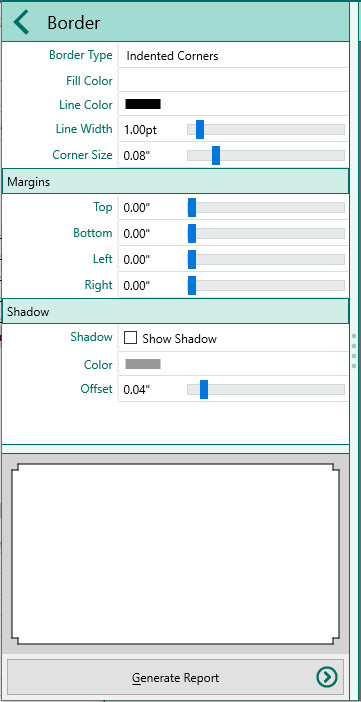
•Border Type – Choose the style of border from the list. The display to the right of the list will show you what the border will look like.
▪None
▪Single line
▪Double line
▪Rounded corners
▪Indented corners
▪Fancy frame 1
▪Fancy frame 2
▪Corners only
▪Double corners
▪Horizontal lines
▪Vertical lines
•Fill color – Click this button to select the color for the inside of the box.
•Line color – Click this button to select the line color for the box.
•Line width - Select the width of the box border
•Corner Size - Choose the amount of rounding for rounded corners
•Margins - Select the margins around the border
•Shadow – Mark this checkbox if you want the border to have a drop shadow.
•Color – Select the color for the shadow.
•Offset – Select an offset for the shadow